How to Automate Monobank Jar Statements for Charities
Today the “Monobank jar” is one of the best-known tools anyone raising money for charity can use. Everyone knows what a Monobank jar is, and people trust it more than they trust the alternatives.
For an ordinary user, setting a jar up and running it is easy enough. For a legal entity it is a far messier business, and dealing with the banking side of it over at Universal Bank can turn into sheer hell.
When a few like-minded people and I set up a charity foundation, I took on the job of automating our processes so that everything would be easy to run. I expected trouble from all sorts of directions, but certainly not from Monobank. Once I started digging in, though, I realised the whole outfit is like a film set: on screen it looks great, but step outside the frame and it is all cardboard. Mono’s support team does its best to paper over the cracks, and they talk to users constantly. They really do try, but they can only do so much. Because where Mono ends, Universal Bank begins, and that is where you start to smell the mothballs — and across most of the services, the acrid, corpse-like stench of Legacy…
How does a Monobank jar statement work for an ordinary user? You open the app, create a jar, and you can watch the donations come in live. And do you know how it works for a legal entity in the app? … it does not work at all :-)). The app simply has no such feature! 🙂
Jar statements turn up once a day by…. email, at whatever address you gave when you registered. At least they do not post them to you through Ukrposhta 🙂 There is no API at all, even though Monobank does have one for individuals and sole traders, and a perfectly good one at that. But there is no way to reach a foundation’s jar through the Mono API, because that is Universal Bank territory!…
AND WHAT IS UNIVERSAL BANK LIKE WHEN IT COMES TO IT SERVICES? FROM HERE ON, SWITCH YOUR IMAGINATION ON:
Picture a post-apocalyptic desert: a scrapyard of old hardware buried under a century of dust, the wind howling somewhere, a tumbleweed rolling past. On the left stands a half-rusted school bus, the kind you see in American films, with old twisted-pair cabling trailing out of it. A very tired bearded man in torn clothes leans out of the bus with an ancient keyboard in his hands. Through the bus window you can see desks set up for work, with old CRT monitors from the nineties.
That bus is where the Legacy code developers live, and the man in shot is their tech lead, held there since the nineties by staff loans and mortgages. Behind the bus lies a huge cemetery running off into the distance, its graves wired back to the bus with twisted pair. This is the graveyard of Legacy code that these developers are trying to keep alive. And in the background you can just make out a bright, modern amusement park called Mono Park 🙂
That is more or less how I picture the whole company every time I run into their IT services. And here is how the Dall-E AI drew it. Spot on, I would say 🙂

Sorry, I got carried away. Anyway: those jar statements land in your inbox, and just in case you were starting to feel like a human being, they come zipped up — a ZIP archive with exactly one CSV file inside. “Convenient”, isn’t it?
As usual, I first pestered Monobank support about a more modern and convenient way to export the statement. There is not one, so I sat down and wrote code that would solve the problem quickly, because I had no time to spend on it.
What I needed:
- Every time a statement email arrives, pull the data out of it and add it to a database.
- Produce a report for one particular fundraising jar over a given period, in PDF and JSON.
- Post that JSON to the site, so the fundraiser’s page can show the list of donations and the comments people left — and huge thanks to them for those!
Below is a very stripped-down version of the code that does all this, except that the data goes into a file rather than a database.
The script does the following:
- Connects to the mail server over IMAP and fetches the emails with ZIP attachments.
- Unpacks the ZIP archives and extracts the CSV files.
- Filters the data on a given criterion (the “Reference” field, for example).
- Sends the data to the server as JSON in a POST request.
- Generates reports in CSV and PDF.
The Python libraries you need:
pip install imaplib email zipfile pandas fpdf requests numpy
The full script looks like this:
import imaplib
import email
import zipfile
import pandas as pd
from io import BytesIO
from datetime import datetime, timedelta
import json
import requests
from fpdf import FPDF
import numpy as np

# Email account details (replace with your actual data)
IMAP_SERVER = 'mail.yourdomain.com'
IMAP_PORT = 993
EMAIL_ACCOUNT = 'your_email@yourdomain.com'
PASSWORD = 'your_password'

# URL for the POST request to send data to the server
POST_URL = 'https://yourdomain.com/your_script.php'

# Authorization token (replace with your actual token)
AUTH_TOKEN = 'your_secure_token'

# Reference filter for data selection (if empty, all data will be selected)
REFERENCE_FILTER = 'F_966'  # You can replace this or leave it empty

# Connect to the email server using IMAP
mail = imaplib.IMAP4_SSL(IMAP_SERVER, IMAP_PORT)
mail.login(EMAIL_ACCOUNT, PASSWORD)
mail.select('inbox')

# Search for emails from a specific sender over the last month
today = datetime.today()
since_date = (today - timedelta(days=30)).strftime("%d-%b-%Y")
status, email_ids = mail.search(None, f'(FROM "SENDER_EMAIL@monobank.com" SINCE {since_date})')

# Check if any emails were found
if email_ids[0]:
    print(f"Emails found: {len(email_ids[0].split())}")
else:
    print("No emails found.")

# List to store combined data
all_data = []

# Process each email
for e_id in email_ids[0].split():
    status, email_data = mail.fetch(e_id, '(RFC822)')
    for response_part in email_data:
        if isinstance(response_part, tuple):
            msg = email.message_from_bytes(response_part[1])
            print(f"Processing email: {msg['Subject']}")

            # Process each part of the email
            for part in msg.walk():
                if part.get_content_maintype() == 'multipart':
                    continue
                if part.get('Content-Disposition') is None:
                    continue

                # Look for zip attachments
                filename = part.get_filename()
                if filename and filename.endswith('.zip'):
                    print(f"Found archive: {filename}")

                    # Process each zip file found
                    zip_data = BytesIO(part.get_payload(decode=True))
                    try:
                        with zipfile.ZipFile(zip_data, 'r') as zip_ref:
                            for file in zip_ref.namelist():
                                if file.endswith('.csv'):
                                    print(f"Extracted file: {file}")
                                    # Read each CSV file from the archive using UTF-8 encoding
                                    with zip_ref.open(file) as csv_file:
                                        data = pd.read_csv(csv_file, encoding='utf-8')

                                        # Filter data by reference if REFERENCE_FILTER is set
                                        if REFERENCE_FILTER:
                                            filtered_data = data[data['Референс благодійної банки'] == REFERENCE_FILTER]
                                        else:
                                            filtered_data = data

                                        # Convert the data to a list of dictionaries and add to combined list
                                        all_data.extend(filtered_data.to_dict(orient='records'))
                    except zipfile.BadZipFile:
                        print(f"Error opening archive: {filename}")

# Check if there is any data to save
if all_data:
    # Export to CSV
    combined_df = pd.DataFrame(all_data)  # Create DataFrame from combined data
    combined_df.to_csv('combined_data.csv', index=False, encoding='utf-8')  # Save as CSV
    print("Data successfully saved to 'combined_data.csv'.")

    # Function to clean data before sending
    def clean_record(record):
        """Replace invalid NaN or infinite values with 0."""
        for key, value in record.items():
            if isinstance(value, float):
                if np.isnan(value) or np.isinf(value):
                    record[key] = 0  # Replace NaN or infinity with 0
        return record

    # Clean all data records
    all_data = [clean_record(record) for record in all_data]

    # Send the cleaned data to the server via POST request
    headers = {
        'Authorization': f'Bearer {AUTH_TOKEN}',
        'Content-Type': 'application/json'
    }

    # Convert the data to JSON
    json_data = json.dumps(all_data, ensure_ascii=False, indent=4)

    # Send data to the server
    response = requests.post(POST_URL, data=json_data.encode('utf-8'), headers=headers)

    if response.status_code == 200:
        print("Data successfully sent to the server.")
    else:
        print(f"Error sending data: {response.status_code} - {response.text}")

    # Export data to PDF
    pdf = FPDF(orientation='L', unit='mm', format='A4')  # Landscape orientation
    pdf.add_page()

    # Add fonts (replace the path with your actual font files)
    pdf.add_font('Roboto', '', './Roboto/Roboto-Regular.ttf', uni=True)
    pdf.add_font('Roboto', 'B', './Roboto/Roboto-Bold.ttf', uni=True)

    # Set font for title
    pdf.set_font('Roboto', 'B', 14)
    pdf.cell(280, 10, txt="Виписка", ln=True, align='C')

    # Include "Reference" and "Bank Name" only once before the table
    pdf.set_font('Roboto', '', 12)
    reference_value = all_data[0].get("Референс благодійної банки", "")
    bank_name = all_data[0].get("Назва благодійної банки", "")
    pdf.ln(10)
    pdf.cell(280, 10, f"Референс благодійної банки: {reference_value}", ln=True)
    pdf.cell(280, 10, f"Назва благодійної банки: {bank_name}", ln=True)

    # Define columns to include and their widths
    columns_to_include = ['Дата платежу', 'Час платежу', 'Сума платежу', 'Метод поповнення банки', 'Коментар до платежу']
    col_widths = [40, 30, 40, 100, 70]  # Set column widths

    # Print table headers
    for i, column in enumerate(columns_to_include):
        pdf.cell(col_widths[i], 10, txt=column, border=1, align='C')
    pdf.ln()

    # Print rows with a combination of cell() and multi_cell()
    for record in all_data:
        row_height = 10  # Default row height

        # Calculate max line count for each cell
        line_counts = [
            pdf.get_string_width(str(record['Дата платежу'])) // col_widths[0] + 1,
            pdf.get_string_width(str(record['Час платежу'])) // col_widths[1] + 1,
            pdf.get_string_width(str(record['Сума платежу'])) // col_widths[2] + 1,
            pdf.get_string_width(str(record['Метод поповнення банки'])) // col_widths[3] + 1,
            pdf.get_string_width(str(record['Коментар до платежу'])) // col_widths[4] + 1
        ]
        max_lines = max(line_counts)  # Calculate the maximum line count in the record

        # Adjust row height based on the maximum line count
        row_height = 10 * max_lines

        # Print regular columns using cell()
        pdf.cell(col_widths[0], row_height, txt=str(record['Дата платежу']), border=1)
        pdf.cell(col_widths[1], row_height, txt=str(record['Час платежу']), border=1)
        pdf.cell(col_widths[2], row_height, txt=str(record['Сума платежу']), border=1)

        # Use multi_cell for long text in "Метод поповнення банки" and "Коментар до платежу"
        x, y = pdf.get_x(), pdf.get_y()  # Save current coordinates
        pdf.multi_cell(col_widths[3], row_height / max_lines, txt=str(record['Метод поповнення банки']), border=1)
        # Move to the next column
        pdf.set_xy(x + col_widths[3], y)

        # Update coordinates for "Коментар до платежу"
        x, y = pdf.get_x(), pdf.get_y()
        pdf.multi_cell(col_widths[4], row_height / max_lines, txt=str(record['Коментар до платежу']), border=1)
        pdf.set_xy(x + col_widths[4], y)

        # Move to the next row
        pdf.ln()

    # Save the PDF
    pdf.output("combined_data.pdf")
    print("Data successfully saved to 'combined_data.pdf'.")
else:
    print("No data found.")

# Close the email session
mail.logout()
Code language: PHP (php)
Now a few notes on it.
Mail server connection details: put your own mail server, account and password in here.
IMAP_SERVER = 'mail.yourdomain.com'
EMAIL_ACCOUNT = 'your_email@yourdomain.com'
PASSWORD = 'your_password'
Code language: JavaScript (javascript)
URL for the POST request: this is the server address the script posts the JSON data to.
POST_URL = 'https://yourdomain.com/your_script.php'
Code language: JavaScript (javascript)
Authorisation token: to stop stray bots hammering the script on the site, I send a token with the request.
AUTH_TOKEN = 'your_secure_token'
Code language: JavaScript (javascript)
And this is the jar’s unique ID. If you are running a lot of fundraisers, you need some way to tell them apart. I did it like this: if an identifier is set, we filter on it; if the field is empty, we show everything.
# Reference filter for data selection (if empty, all data will be selected)
REFERENCE_FILTER = 'F_966'  # You can replace this or leave it empty
Code language: PHP (php)
Here we set the address Mono sends the statement from, and how far back to process the emails. I have taken one month as an example.
# Search for emails from a specific sender over the last month
today = datetime.today()
since_date = (today - timedelta(days=30)).strftime("%d-%b-%Y")
status, email_ids = mail.search(None, f'(FROM "SENDER_EMAIL@monobank.com" SINCE {since_date})')
Code language: PHP (php)
That is about it. The result comes out as a PDF, though I did not agonise over how the document looks. For what I needed, it was plenty.
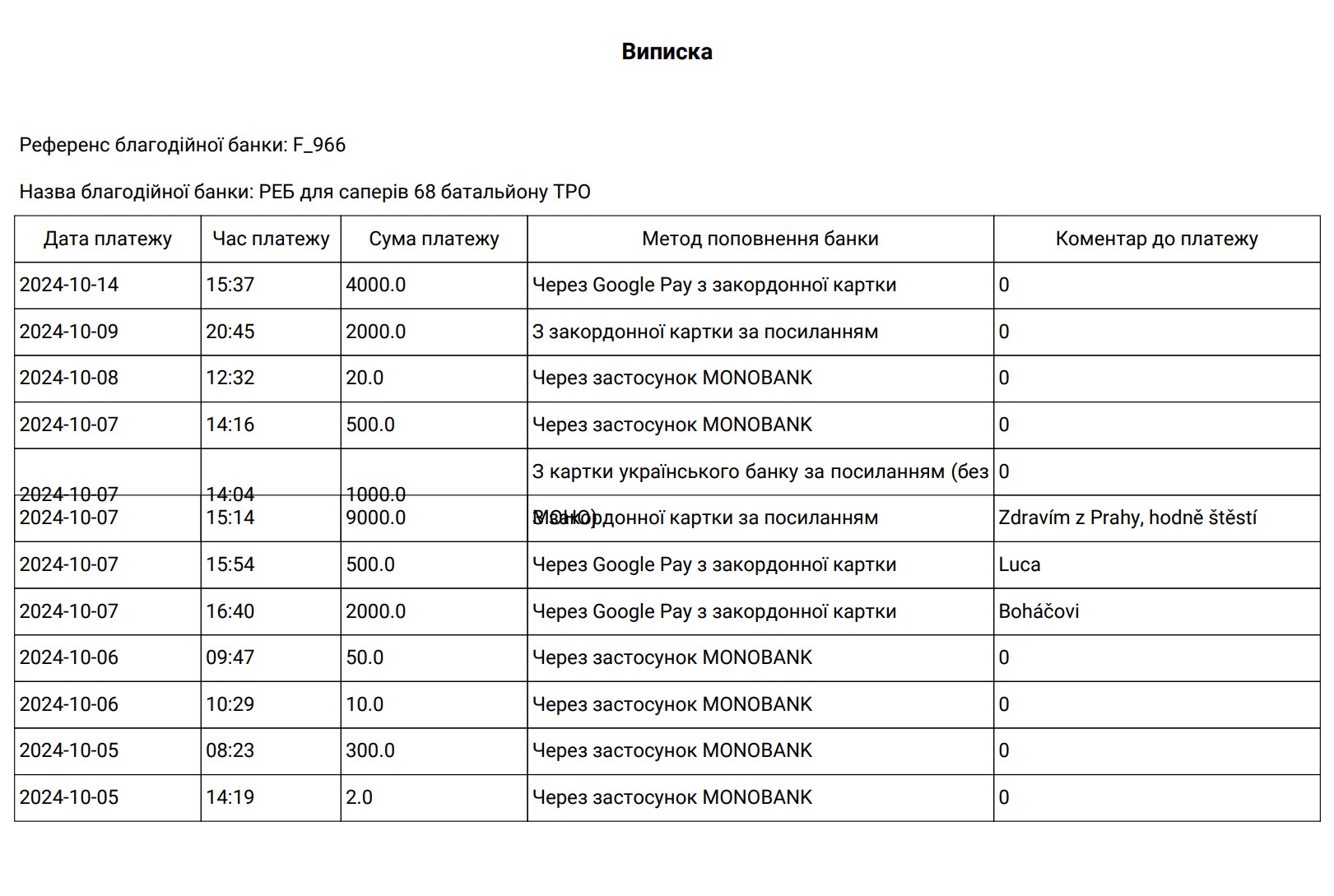
I run this script from cron, every day at 11:00
0 11 * * * /usr/bin/python3 /path_to_your_script/your_script.py
Code language: JavaScript (javascript)
That is all from me!
Thanks for reading, and I hope you found it useful!
